

 Microsoft Defender for Endpoint
 Endpoint protection
Configure Advanced Features in Microsoft Defender for Endpoint - Microsoft Defender for Endpoint | Microsoft Learn
In brief
The page was updated with revised metadata, clearer On/Off selection steps, an endpoint screenshot, and added guidance explaining that scoped device group correlation can produce separate incidents for Global SOC users.
What Defender admins need to know
No action is required. Administrators configuring these settings should review the clarified correlation guidance and updated steps.
Summaries are generated from the documentation change itself.
Documentation change
 View on Microsoft Learn
The comparison below shows only the changed extract. Use the full-page view for complete context.
Configure advanced featuresAdvanced Features in Microsoft Defender for Endpoint - Microsoft Defender for Endpoint | Microsoft Learn
You can configure the following Defender for Endpoint advanced features depending on the Microsoft security products in your environment.
- Go to the Microsoft Defender portal and sign in.
- In the navigation pane, select Settings > Endpoints > Advanced features.
- Select the advanced feature you want to configure and
toggle the setting betweenselect Onandor Off. - Select Save preferences.
Use the following advanced features to get better protected from potentially malicious files and gain better insight during security investigations.
Restrict correlation to within scoped device groups
The scoped device group correlation setting can be used for scenarios where local SOC operations would like to limit alert correlations only to device groups that they can access. When the scoped device group correlation setting is turned on, an incident composed of alerts that cross-device groups is no longer considered a single incident. The local SOC can then take action on the incident because they have access to one of the device groups involved. However, global
Global SOC sees several different incidents by device group instead of one incident. We don't recommend turning on this setting unless doing so outweighs the benefits of incident correlation across the entire organization.
Note
Automatically resolve alerts
Turn on the auto-resolve alerts setting to automatically resolve alerts where no threats were found or where detected threats were remediated. If you don't want to have alerts auto resolved, you'll need to manually turn off the feature.
Note
- The result of the auto-resolve action may influence the Device risk level calculation which is based on the active alerts found on a device.
- If a security operations analyst manually sets the status of an alert to
"In progress"or"Resolved", the auto-resolve capabilitywill notdoesn't overwrite it.
Configure allow or block file settings
To turn on Allow or block files:
In the Microsoft Defender portal, select Settings > Endpoints > General > Advanced features > Allow or block file.
Toggle theSelect a settingbetweenof Onandor Off.a.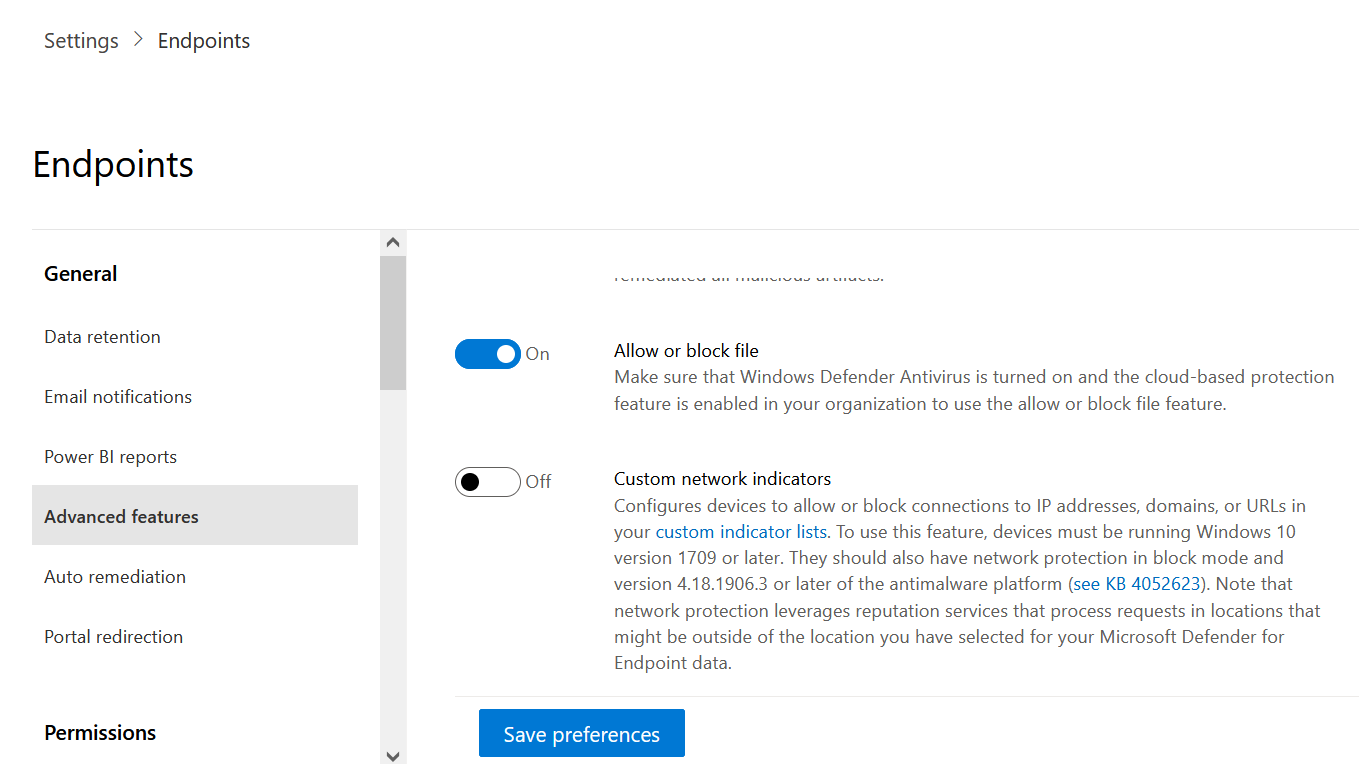
Select Save preferences
at the bottom of the page..
After you turn on this feature, you can block files from the Add Indicator tab on a file's profile page.
Hide potential duplicate device records
Configure custom network indicators
Turning on custom network indicators allows you to create indicators for IP addresses, domains, or URLs, which determine whether they'll bere allowed or blocked based on your custom indicator list.
To use this feature, devices must be running Windows 10 version 1709 or later, or Windows 11.
Note
Network protection leverages reputation services that process requests in locations that might be outside of the location you've selected for your Defender for Endpoint data.
Enable tamper protection
Enable user details display
Turn on the show user details feature so that you can see user details stored in Microsoft Entra ID.ID, when investigating user account entities. Details include a user's picture, name, title, and department information when investigating user account entities.information. You can find user account information in the following views:
- Alert queue
- Device details page
Configure web content filtering
Block access to websites containingthat contain unwanted content and track web activity across all domains. Before you deploy the Microsoft Defender for Endpoint security baseline, ensure network protection is in block mode. To specify the web content categories you want to block, create a web content filtering policy.
Enable the unified audit log
Search in Microsoft Purview enables your security and compliance team to view critical audit log event data to gain insight and investigate user activities. Whenever an audited activity is performed by a user or an admin,administrator, an audit record is generated and stored in the Microsoft 365 audit log for your organization. For more information, see the Search the audit log.
Enable device discovery
Helps you find unmanaged devices connected to your corporate network without the need for extra appliances or cumbersome process changes. Using onboarded devices, you can find unmanaged devices in your network and assess vulnerabilities and risks. For more information, see Device discovery.
Note
Download quarantined files
BackupBack up quarantined files in a secure and compliant location so they can be downloaded directly from quarantine. The Download file button is always available in the file page. The download quarantined files setting is turned on by default. For more information, see Download quarantined files.
Default to streamlined connectivity when onboarding devices in the Defender portal
This setting makes streamlined connectivity the default onboarding package for supported operating systems. You can still use the standard package, but you need to select it from the drop-down on the onboarding page.
Enable live response
You can integrate Defender for Endpoint with Microsoft Intune to enable device risk-based conditional access. When you configure Conditional Access, Defender for Endpoint shares device data with Intune to help enforce policies.
This integration requires Microsoft Intune. Intune is a separate product that isn't part of Microsoft Defender for Endpoint, and itEndpoint. It isn't included in all subscriptions. You need licenses that support Defender for Endpoint, Intune, and Microsoft Entra Conditional Access. For more information, see Microsoft Intune licensing and Conditional Access policy license requirements.
Important
Learn about new features in the Defender for Endpoint preview release.
Try upcoming features by turning on the preview experience. You'll can have access to upcoming features, which you can provide feedback on to help improve the overall experience before features are generally available.
If you already have preview features turned on, manage your settings from the main Defender XDR settings.
For more information, see Microsoft Defender XDR preview features.
Configure Endpoint Attack Notifications
@@ -1,6 +1,6 @@ --- layout: Conceptual-title: Configure advanced features in Microsoft Defender for Endpoint - Microsoft Defender for Endpoint | Microsoft Learn+title: Configure Advanced Features in Microsoft Defender for Endpoint - Microsoft Defender for Endpoint | Microsoft Learn canonicalUrl: https://learn.microsoft.com/en-us/defender-endpoint/advanced-features breadcrumb_path: /defender-endpoint/breadcrumb/toc.json feedback_system: Standard@@ -8,7 +8,7 @@ permissioned-type: public feedback_product_url: https://techcommunity.microsoft.com/t5/security-compliance-and-identity/ct-p/MicrosoftSecurityandCompliance uhfHeaderId: MSDocsHeader-MicrosoftDefender manager: bagol-description: Configure advanced Defender for Endpoint features such as EDR in block mode, tamper protection, live response, attack disruption, custom network indicators, and integrations with Intune, Defender for Cloud Apps, and Microsoft Purview.+description: Configure advanced Defender for Endpoint features such as EDR in block mode, tamper protection, live response, attack disruption, and custom network indicators. ms.service: defender-endpoint ms.author: painbar author: paulinbar@@ -40,15 +40,15 @@ source_path: defender-endpoint/advanced-features.md cmProducts: - https://microsoft-devrel.poolparty.biz/DevRelOfferingOntology/c671beaa-a830-4c9f-aceb-97379ee031ca - https://microsoft-devrel.poolparty.biz/DevRelOfferingOntology/8b9ae643-2e85-42b8-beb2-eef4bae8c4bc-- https://authoring-docs-microsoft.poolparty.biz/devrel/1e69816a-aaaa-474e-a36f-3ec7790fadc3+- https://authoring-docs-microsoft.poolparty.biz/devrel/74b1e9df-8124-4d0c-b310-50c3bf3ff02b spProducts: - https://microsoft-devrel.poolparty.biz/DevRelOfferingOntology/8921374c-4dbe-4ed0-b011-a39e18bfbd98 - https://microsoft-devrel.poolparty.biz/DevRelOfferingOntology/e047e27d-b5f3-43a8-b4b0-4f6dca95e7c9-- https://authoring-docs-microsoft.poolparty.biz/devrel/ae012320-d2b3-47d8-abdc-898a64d069a9+- https://authoring-docs-microsoft.poolparty.biz/devrel/7c78426a-2d2c-4bce-8e97-c1c9ab1c453e platformId: cc0354f2-b1d2-d5c9-0185-e98ab85e8c34 --- -# Configure advanced features in Microsoft Defender for Endpoint - Microsoft Defender for Endpoint | Microsoft Learn+# Configure Advanced Features in Microsoft Defender for Endpoint - Microsoft Defender for Endpoint | Microsoft Learn You can configure the following Defender for Endpoint advanced features depending on the Microsoft security products in your environment.
@@ -58,14 +58,16 @@ To enable or disable an advanced feature in the Microsoft Defender portal:
1. Go to the [Microsoft Defender portal](https://go.microsoft.com/fwlink/p/?linkid=2077139) and sign in.
2. In the navigation pane, select **Settings** > **Endpoints** > **Advanced features**.
-3. Select the advanced feature you want to configure and toggle the setting between **On** and **Off**.
+3. Select the advanced feature you want to configure and select **On** or **Off**.
4. Select **Save preferences**.
Use the following advanced features to get better protected from potentially malicious files and gain better insight during security investigations.
## Restrict correlation to within scoped device groups
-The scoped device group correlation setting can be used for scenarios where local SOC operations would like to limit alert correlations only to device groups that they can access. When the scoped device group correlation setting is turned on, an incident composed of alerts that cross-device groups is no longer considered a single incident. The local SOC can then take action on the incident because they have access to one of the device groups involved. However, global SOC sees several different incidents by device group instead of one incident. We don't recommend turning on this setting unless doing so outweighs the benefits of incident correlation across the entire organization.
+The scoped device group correlation setting can be used for scenarios where local SOC operations would like to limit alert correlations only to device groups that they can access. When the scoped device group correlation setting is turned on, an incident composed of alerts that cross-device groups is no longer considered a single incident. The local SOC can then take action on the incident because they have access to one of the device groups involved.
+
+Global SOC sees several different incidents by device group instead of one incident. We don't recommend turning on this setting unless doing so outweighs the benefits of incident correlation across the entire organization.
Note
@@ -78,12 +80,12 @@ Endpoint detection and response (EDR) in block mode provides protection from mal
## Automatically resolve alerts
-Turn on the auto-resolve alerts setting to automatically resolve alerts where no threats were found or where detected threats were remediated. If you don't want to have alerts auto resolved, you'll need to manually turn off the feature.
+Turn on the auto-resolve alerts setting to automatically resolve alerts where no threats were found or where detected threats were remediated. If you don't want to have alerts auto resolved, manually turn off the feature.
Note
- The result of the auto-resolve action may influence the Device risk level calculation which is based on the active alerts found on a device.
-- If a security operations analyst manually sets the status of an alert to "In progress" or "Resolved" the auto-resolve capability will not overwrite it.
+- If a security operations analyst manually sets the status of an alert to *In progress* or *Resolved*, the auto-resolve capability doesn't overwrite it.
## Configure allow or block file settings
@@ -97,11 +99,12 @@ This feature lets you block harmful files in your network. When you block a file To turn on **Allow or block** files:
1. In the Microsoft Defender portal, select **Settings** > **Endpoints** > **General** > **Advanced features** > **Allow or block file**.
-2. Toggle the setting between **On** and **Off**.
+2. Select a setting of **On** or **Off**.
+
+ [](/en-us/defender/media/alloworblockfile.png#lightbox)
+3. Select **Save preferences**.
- a. [](/en-us/defender/media/alloworblockfile.png#lightbox)
-3. Select **Save preferences** at the bottom of the page.
-4. After you turn on this feature, you can [block files](respond-file-alerts#allow-or-block-file) from the **Add Indicator** tab on a file's profile page.
+After you turn on this feature, you can [block files](respond-file-alerts#allow-or-block-file) from the **Add Indicator** tab on a file's profile page.
## Hide potential duplicate device records
@@ -113,7 +116,7 @@ This setting is on by default and applies tenant wide. To show duplicate records
## Configure custom network indicators
-Turning on custom network indicators allows you to create indicators for IP addresses, domains, or URLs, which determine whether they'll be allowed or blocked based on your custom indicator list.
+Turning on custom network indicators allows you to create indicators for IP addresses, domains, or URLs, which determine whether they're allowed or blocked based on your custom indicator list.
To use this feature, devices must be running Windows 10 version 1709 or later, or Windows 11.
@@ -121,7 +124,7 @@ For more information, see [Overview of indicators](indicators-overview).
Note
-Network protection leverages reputation services that process requests in locations that might be outside of the location you've selected for your Defender for Endpoint data.
+Network protection leverages reputation services that process requests in locations that might be outside of the location you selected for your Defender for Endpoint data.
## Enable tamper protection
@@ -131,7 +134,7 @@ For more information, including how to configure tamper protection, see [Tamper
## Enable user details display
-Turn on the show user details feature so that you can see user details stored in Microsoft Entra ID. Details include a user's picture, name, title, and department information when investigating user account entities. You can find user account information in the following views:
+Turn on the show user details feature so that you can see user details stored in Microsoft Entra ID, when investigating user account entities. Details include a user's picture, name, title, and department information. You can find user account information in the following views:
- Alert queue
- Device details page
@@ -154,15 +157,15 @@ For more information, see [Microsoft Defender for Cloud Apps overview](/en-us/de
## Configure web content filtering
-Block access to websites containing unwanted content and track web activity across all domains. Before you deploy the [Microsoft Defender for Endpoint security baseline](https://devicemanagement.microsoft.com/#blade/Microsoft_Intune_Workflows/SecurityBaselineSummaryMenu/overview/templateType/2), ensure network protection is in block mode. To specify the web content categories you want to block, create a [web content filtering policy](https://security.microsoft.com/preferences2/web_content_filtering_policy).
+Block access to websites that contain unwanted content and track web activity across all domains. Before you deploy the [Microsoft Defender for Endpoint security baseline](https://devicemanagement.microsoft.com/#blade/Microsoft_Intune_Workflows/SecurityBaselineSummaryMenu/overview/templateType/2), ensure network protection is in block mode. To specify the web content categories you want to block, create a [web content filtering policy](https://security.microsoft.com/preferences2/web_content_filtering_policy).
## Enable the unified audit log
-Search in Microsoft Purview enables your security and compliance team to view critical audit log event data to gain insight and investigate user activities. Whenever an audited activity is performed by a user or an admin, an audit record is generated and stored in the Microsoft 365 audit log for your organization. For more information, see the [Search the audit log](/en-us/purview/audit-search).
+Search in Microsoft Purview enables your security and compliance team to view critical audit log event data to gain insight and investigate user activities. Whenever an audited activity is performed by a user or an administrator, an audit record is generated and stored in the Microsoft 365 audit log for your organization. For more information, see the [Search the audit log](/en-us/purview/audit-search).
## Enable device discovery
-Helps you find unmanaged devices connected to your corporate network without the need for extra appliances or cumbersome process changes. Using onboarded devices, you can find unmanaged devices in your network and assess vulnerabilities and risks. For more information, see [Device discovery](device-discovery).
+Helps you find unmanaged devices connected to your corporate network without extra appliances or cumbersome process changes. Using onboarded devices, you can find unmanaged devices in your network and assess vulnerabilities and risks. For more information, see [Device discovery](device-discovery).
Note
@@ -170,11 +173,11 @@ You can always apply filters to exclude unmanaged devices from the device invent
## Download quarantined files
-Backup quarantined files in a secure and compliant location so they can be downloaded directly from quarantine. The **Download file** button is always available in the file page. The download quarantined files setting is turned on by default. [Requirements for downloading quarantined files](respond-file-alerts#download-quarantined-files)
+Back up quarantined files in a secure and compliant location so they can be downloaded directly from quarantine. The **Download file** button is always available in the file page. The download quarantined files setting is turned on by default. For more information, see [Download quarantined files](respond-file-alerts#download-quarantined-files).
## Default to streamlined connectivity when onboarding devices in the Defender portal
-This setting makes [streamlined connectivity](configure-device-connectivity) the default onboarding package for supported operating systems. You can still use the standard package, but you need to select it from the drop-down on the onboarding page.
+This setting makes [streamlined connectivity](configure-device-connectivity) the default onboarding package for supported operating systems. You can still use the standard package, but you need to select it from the onboarding page.
## Enable live response
@@ -206,7 +209,7 @@ After you set up the [policy indicators](/en-us/purview/insider-risk-management-
You can integrate Defender for Endpoint with [Microsoft Intune](/en-us/intune/intune-service/fundamentals/what-is-intune) to [enable device risk-based conditional access](/en-us/intune/intune-service/protect/advanced-threat-protection). When you [configure Conditional Access](configure-conditional-access), Defender for Endpoint shares device data with Intune to help enforce policies.
-This integration requires Microsoft Intune. Intune is a separate product that isn't part of Microsoft Defender for Endpoint, and it isn't included in all subscriptions. You need licenses that support Defender for Endpoint, Intune, and Microsoft Entra Conditional Access. For more information, see [Microsoft Intune licensing](/en-us/intune/intune-service/fundamentals/licenses) and [Conditional Access policy license requirements](/en-us/entra/identity/conditional-access/overview#license-requirements).
+This integration requires Microsoft Intune. Intune is a separate product that isn't part of Microsoft Defender for Endpoint. It isn't included in all subscriptions. You need licenses that support Defender for Endpoint, Intune, and Microsoft Entra Conditional Access. For more information, see [Microsoft Intune licensing](/en-us/intune/intune-service/fundamentals/licenses) and [Conditional Access policy license requirements](/en-us/entra/identity/conditional-access/overview#license-requirements).
Important
@@ -224,11 +227,11 @@ You can **Turn on** Authenticated telemetry to prevent spoofing telemetry into y
Learn about new features in the Defender for Endpoint preview release.
-Try upcoming features by turning on the preview experience. You'll have access to upcoming features, which you can provide feedback on to help improve the overall experience before features are generally available.
+Try upcoming features by turning on the preview experience. You can have access to upcoming features, which you can provide feedback on to help improve the overall experience before features are generally available.
If you already have preview features turned on, manage your settings from the main Defender XDR settings.
-For more information, see [Microsoft Defender XDR preview features](/en-us/defender-xdr/preview)
+For more information, see [Microsoft Defender XDR preview features](/en-us/defender-xdr/preview).
## Configure Endpoint Attack Notifications